Online Keyboard Shortcuts
Master essential keyboard shortcuts for Windows, MacOS, and Linux to boost your productivity without the mouse.
Visit
About Online Keyboard Shortcuts
Online Keyboard Shortcuts, available at OnlineShortcuts.com, is a curated, no-nonsense reference guide designed for users who want to work faster and more efficiently across Windows, macOS, and Linux. In an era where every second counts, this tool eliminates the need to hunt through menus or rely on a mouse for repetitive tasks. Instead, it provides a clean, organized collection of the most essential keyboard combinations that power users, developers, writers, and everyday computer operators rely on. The core philosophy behind this product is quality over quantity. Rather than overwhelming you with every obscure shortcut ever created, it focuses on the high-impact combinations that genuinely boost productivity. Whether you are a seasoned IT professional, a creative designer, or someone simply looking to reduce wrist strain from constant mouse use, this resource is tailored for you. The website is intentionally free of ads, upsells, and tracking spyware, ensuring that your experience is focused solely on learning and applying shortcuts. It covers system-wide shortcuts, operating system-specific keys like the Windows key, macOS Command key, and Linux Super key, as well as application-specific shortcuts for tools like File Explorer, Command Prompt, web browsers, and text editors. The content is presented in a clean, responsive format that works on desktops, tablets, and mobile devices, making it accessible whether you are at your desk or on the go. Additionally, users can download a handy cheatsheet in PDF or PNG format for offline reference. Online Keyboard Shortcuts is more than just a list; it is a productivity accelerator for anyone who spends significant time on a computer.
Features of Online Keyboard Shortcuts
Comprehensive Platform Coverage
This resource provides a deliberate selection of keyboard shortcuts for the three major operating systems: Windows, macOS, and Linux. Instead of trying to cover every possible variation, it focuses on the most commonly used and impactful shortcuts for each platform. For Windows, you get system-wide commands like Win + I for Settings, Win + L for locking your screen, and Win + Shift + S for screenshots. For macOS and Linux, the same thoughtful curation applies, ensuring you learn the combinations that will save you the most time in your daily workflow.
Application-Specific Shortcuts
Beyond operating system basics, Online Keyboard Shortcuts dives into the most important shortcuts for specific applications. This includes essential commands for File Explorer, such as Ctrl + Shift + N to create a new folder, and Command Prompt, like F7 to view command history. It also covers text editing shortcuts (Ctrl + B for bold, Ctrl + I for italicize), web browser shortcuts (Ctrl + T for new tab, Ctrl + Shift + T to reopen a closed tab), and virtual desktop management. This feature ensures you are not just faster in the OS, but also in the tools you use every day.
Downloadable Cheatsheets
Understanding that you cannot always be online, the website offers downloadable cheatsheets in multiple formats. You can get a PDF for easy printing or sharing, as well as dark and light PNG images for quick visual reference. This allows you to keep the most important shortcuts pinned to your desk, saved on your phone, or embedded in your note-taking app. It is a practical feature for those who prefer physical or offline references while learning new workflows.
Clean, Ad-Free User Experience
The website is designed with a minimalist, distraction-free interface. There are no pop-ups, banner ads, or intrusive upsells trying to sell you a premium version. The content is presented in a straightforward, organized layout with clear visual groupings for Windows, macOS, and Linux. This focus on usability means you can find the exact shortcut you need without sifting through clutter. It is a deliberate choice to prioritize the user's learning and productivity over monetization.
Use Cases of Online Keyboard Shortcuts
Boosting Daily Office Productivity
Office workers who spend hours in word processors, spreadsheets, and email clients can dramatically reduce task completion time. Instead of reaching for the mouse to copy, paste, or switch windows, users can rely on shortcuts like Ctrl + C, Ctrl + V, and Alt + Tab. Learning to navigate File Explorer with shortcuts like Alt + P for preview pane or F2 to rename files streamlines file management. This use case is about transforming small, repetitive actions into seamless, muscle-memory-driven habits.
Enhancing Developer and IT Workflows
Developers, system administrators, and IT professionals often live in terminals and code editors. Online Keyboard Shortcuts provides essential commands for Command Prompt, such as viewing command history with F7 or copying and pasting text. For those using virtual desktops, shortcuts like Win + Ctrl + D to create a new desktop or Win + Ctrl + Left/Right to switch between them are invaluable for organizing multiple projects. This use case focuses on minimizing context switching and keeping hands on the keyboard for faster coding and troubleshooting.
Reducing Physical Strain and Ergonomic Comfort
Frequent mouse usage can lead to repetitive strain injuries in the wrist, arm, and shoulder. By learning keyboard shortcuts, users can significantly reduce their reliance on the mouse, promoting a more ergonomic workflow. Actions like opening the Start Menu with the Windows key, locking the screen with Win + L, or switching tabs with Ctrl + Tab keep hands in a neutral typing position. This use case is particularly relevant for users who spend 8+ hours a day at a computer and are looking for ways to improve their long-term physical health.
Supporting Cross-Platform Users
Many professionals work across multiple operating systems, such as using a Windows desktop at the office and a MacBook at home. Online Keyboard Shortcuts helps these users maintain productivity by providing a clear reference for the equivalent shortcuts on each platform. For example, learning that Ctrl + C on Windows is Command + C on macOS, or that the Windows key corresponds to the Command key on Mac and the Super key on Linux, bridges the gap between systems. This use case ensures a smooth transition and consistent efficiency regardless of the device being used.
Frequently Asked Questions
What is Online Keyboard Shortcuts?
Online Keyboard Shortcuts is a comprehensive yet curated guide to the most important keyboard shortcuts for Windows, macOS, and Linux. It is designed to help users improve their productivity by providing quick and easy access to commonly used commands and hotkeys, reducing reliance on the mouse. The website focuses on quality over quantity, presenting only the most impactful shortcuts for system-wide use and specific applications.
How do I use Online Keyboard Shortcuts?
Simply browse the list of shortcuts organized by operating system or application. Find the shortcut you need, memorize it, and start using it in your daily workflow. The website is designed to be intuitive and straightforward, so you can quickly find what you are looking for. For offline reference, you can download the cheatsheet as a PDF or PNG image.
Are the keyboard shortcuts updated regularly?
The shortcuts are curated to be as accurate as possible for the specified software versions. However, software updates can sometimes change hotkeys, so it is always good practice to verify with the specific version you are running. The team behind the site strives to keep the most essential and stable shortcuts listed, focusing on those that have remained consistent over time.
Is there a mobile version of the site?
Yes, the website is designed to be fully accessible and responsive. You can view all cheatsheets and content on mobile devices, tablets, and desktops without any loss of functionality or readability. The layout adapts to your screen size, making it easy to reference shortcuts even when you are away from your main computer.
Explore more in this category:
Similar to Online Keyboard Shortcuts

HomeAnswerBook
Practical, independent guides to home repairs, maintenance, costs, troubleshooting, and everyday fixes.
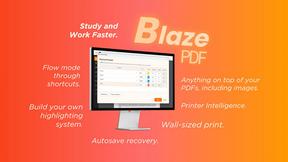
BlazePDF
Highlight faster. Study in flow with custom shortcuts and a workflow built around you. Print smarter, or turn any page into a tiled poster.
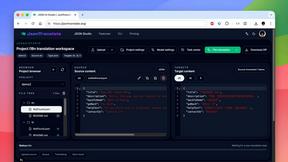
JsonTranslate
A json translater for translating JSON, Markdown, and TXT files while preserving keys, nested paths, and project structure.

Build Mode for Mac
Build Mode is a Mac app that turns focused sessions into visible progress, so you can see the work adding up before the results arrive.



VidRush AI
AI-powered long video generator. Turn text, images, audio and video into long, production-ready AI videos.